
How to Use AI Tools for Note-Taking
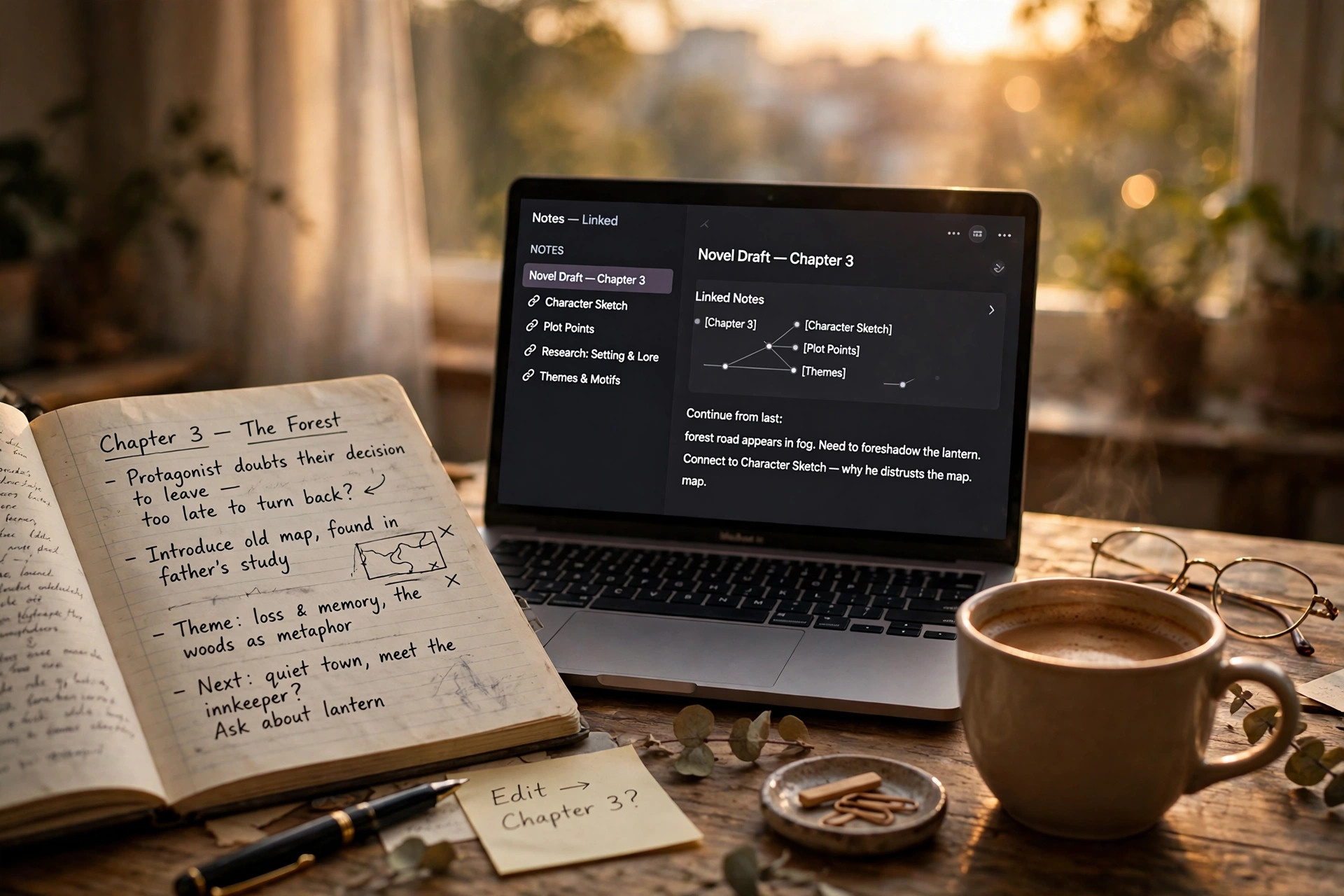
Most notes die the moment they are written. A meeting note goes into an app and is never opened again. A highlight from a book sits in a reader nobody revisits. A brilliant idea scribbled at midnight is lost by morning, buried under a hundred newer notes that were never organised. The problem was never that we take too few notes — it is that we take them in too many places, in too many formats, and with no system for ever finding them again. In 2026, AI note-taking tools promise to fix exactly that: they transcribe your meetings, summarise your documents, answer questions about your own notes, and resurface the right idea at the right moment. Some of that promise is real. Some of it is a faster way to build a bigger pile you will never read. This guide shows how to use AI tools for note-taking properly: how to capture everything in one place, turn raw notes into knowledge you can actually use, ask your notes questions and get honest answers, and keep the whole system yours — exportable, private, and still working when the AI is switched off.
What AI note-taking tools actually do — and what they do not
There are five different kinds of AI hiding inside note-taking tools, and most wasted subscriptions come from buying one kind and expecting another's job. First, the capture tools — Otter.ai, Fireflies, and Fathom — which listen to a meeting or a voice memo and turn speech into text. Second, the research notebooks — NotebookLM and Heptabase — which let you load your own documents and ask questions that are answered from your sources, not from the open internet. Third, the connected notebooks — Notion AI, Evernote, and Mem — which hold your notes, link them together, and let an AI summarise, rewrite, and search across them. Fourth, the local-first knowledge bases — Obsidian and Tana — which keep your notes as plain files on your own device and let AI work on top of them. Fifth, the reading tools — Readwise — which collect your highlights from books, articles, and PDFs and bring them back to you on a schedule so you actually remember them.
What AI is genuinely good at: transcription — turning an hour of speech into searchable text in minutes, with accuracy that is good enough for notes even if it is not perfect; summarisation — turning a long document into the five points that matter; search — finding the note where you wrote a name three months ago, even when you cannot remember the file; and connection — spotting that a note from January and a note from June are about the same idea. What it is genuinely bad at: knowing what matters to you, because it cannot tell the difference between a throwaway thought and the idea your whole project depends on; honesty, because it will summarise a document you never read and present its summary with total confidence, including details it invented; and memory — an AI summary is not understanding, and reading a summary is not the same as learning something. It also cannot organise a pile you never look at. If you capture a hundred notes a week and review none of them, AI will simply help you build a bigger, better-indexed pile. The rule for this whole guide is simple: AI does the transcription, the summarising, and the searching — you do the thinking. The moment a summary replaces your own judgement, you have stopped taking notes and started collecting them.
Step 1: Start with the capture habit, not the tool
Before you open a single AI tool, answer one question on paper: what do you actually want your notes to do for you? Most people have one of three jobs. Students and researchers need to turn readings and lectures into understanding they can use in an exam or a paper. Professionals need to remember what was decided, who promised what, and where the document is. Writers and thinkers need a place where ideas meet each other — a note from a book, a note from a conversation, and the connection between them. These are different jobs, and they need different tools, but they share one rule: the system that works is the one you actually use, every day, without thinking about it.
So start with the habit, not the app. Pick one capture inbox — one place where every note, idea, and voice memo goes first — and use it for two weeks before you buy anything. A simple test: at the end of the day, can you find, in under a minute, the note you took this morning? If the answer is no, the problem is not the tool. It is that your notes live in five places and none of them is the inbox. Ask ChatGPT or Claude to stress-test the habit before you build anything: "Here is how I take notes today, and here is what I lose. What is the smallest system that would fix it?" The answer is usually unflattering — usually you capture too much and review too little — and that is exactly why you ask before spending money. Set the honest target: a good note-taking system is one where you capture in seconds, find in seconds, and review in minutes. Anything slower than that will quietly die within a month, however clever the AI inside it is.
Step 2: Pick your home base — one notebook that holds everything
Every note-taking tool will try to become your home base, and the honest choice is between a cloud notebook that does everything for you and a local-first notebook that keeps your files yours. Notion AI is the all-in-one pick, and for a team or a person who lives in documents it is the right one: pages, databases, wikis, and tasks in one workspace, with AI that writes, summarises, and answers questions across the whole workspace. The pricing matters here, because it changed: full Notion AI now comes inside the Business plan at $20 per user per month billed annually ($24 billed monthly), while the Plus plan at $10 per user per month billed annually only includes a limited AI trial. The old standalone AI add-on is gone for new customers, so the price of Notion AI is the price of a Business seat — which is a fair deal if you use the whole workspace, and a bad deal if you only wanted the AI.
Obsidian is the opposite end of the same decision, and it is built for people who want to own their notes. The app itself is free on every platform, your notes are plain Markdown files on your own device, and nothing is held back for a paid tier. What costs money is the optional sync: Sync Standard is $4 per user per month billed annually ($5 billed monthly), covering one vault with 1 GB of storage and a month of version history, and there is an optional commercial licence at $50 per user per year that Obsidian says organisations are encouraged, but not required, to buy. Evernote is the cautionary tale in this comparison: the classic capture app, still good at web clipping and document scanning, but its free plan is now capped at 50 notes and one notebook, and paid plans start at $14.99 a month on monthly billing, or about $99 a year on the Starter plan — which caps you at 1,000 notes. Before you commit to any of them, trial with real notes, not with a demo account. Give each candidate the same real job — your next twenty notes, your next five meetings, your next three documents — and run it for two weeks. The notebook that survives contact with your actual work is the right one: which one you actually open, which one makes capture painless, which one finds a note in seconds. And one honest warning: the free plan is a trial wearing a plan's name. The features that actually make a system work — unlimited notes, sync across devices, AI search — sit on the paid tiers, so budget for the paid tier from the start if notes are real work for you.
Step 3: Capture everything, in one inbox
The inbox is the whole game. A note captured in the wrong place is a note lost, and a system with five inboxes is a system with no inbox. Start by writing down your four capture sources: meetings, voice memos, reading, and random ideas. Then give each one a single route into the same notebook. Meetings go through a transcription tool: Otter.ai is the transcription pick for teams that live in meetings — its Pro plan is $8.33 a month per user billed annually, and Business is $19.99 a month per user billed annually — while Fireflies and Fathom join the call, transcribe it, and produce a summary with action items. The free tiers of these tools are genuinely useful for a few meetings a week, and they are the right place to start.
Voice memos are the capture method most people skip, and they are the one that saves the most ideas. The thought you have in the car, on a walk, or in the shower is gone in sixty seconds unless it is recorded, and a two-minute voice memo is worth more than a perfect note you never write. Record it, let the AI transcribe it, and send the transcript to your inbox — most note apps accept email, and Zapier, Make, or n8n can move a new transcript into your notebook automatically. Reading goes through the same door: highlight in your reader, and let the highlights flow into your notes instead of sitting in an app you never open. And random ideas go into the fastest capture you own — the phone app, the quick-add button, the widget on your home screen — because an idea that takes five taps to save is an idea that never gets saved. The workflow that works is a daily loop, not a weekend organisation project. Morning: check the inbox, and sort yesterday's captures — two minutes, not two hours. During the day: capture everything, and do not organise anything. Evening: process the inbox to zero, or as close to it as you can get. A note that sits in the inbox for a month is a note that was never a note — it was a postponement.
Step 4: Turn notes into knowledge — link, tag, and summarise
A pile of notes is not knowledge. Knowledge is what happens when notes meet each other, and that is the step most people skip, because it feels like extra work. It is not extra work — it is the work. The simplest version has three moves, and it takes about five minutes a day. First, link: when a new note reminds you of an old one, connect them. In Obsidian this is a double-bracket link; in Notion AI it is a relation or a backlink; in Heptabase it is a card on a whiteboard next to the card it belongs with. Second, tag: give the note one or two tags that describe what it is about, not where it came from. "Pricing" and "competitor" are useful tags; "meeting" and "misc" are not, because they describe everything and therefore nothing.
Third, summarise — and this is where the AI earns its keep. Ask the AI to turn a long note into three sentences: what it says, why it matters, and what to do next. But then do the one thing the AI cannot do: check it. Read the summary against the original, correct anything it got wrong, and add one sentence of your own — what you think about it. That sentence is the difference between a note you collected and a note you understood. ChatGPT Plus at $20 a month, or Claude Pro at $20 a month, will do this job well if you paste your notes into a project with a simple instruction: "Summarise in three sentences, then list anything you are unsure about." The second half of that instruction matters more than the first, because an AI that tells you what it does not know is an AI you can trust, and an AI that never admits doubt is an AI that will invent a fact and present it as certain. Never let an AI summarise a document you have not at least skimmed. A summary of a source you never read is a rumour with formatting.
Step 5: Ask your notes questions — and check the answers
This is the feature that changed note-taking in 2026, and it is the one most worth understanding properly. A research notebook lets you load your own sources — PDFs, articles, transcripts, your own notes — and then ask questions that are answered from those sources, with citations back to the exact page. NotebookLM is the pick here, and it is free with a Google account: the free tier allows 50 sources per notebook and 100 notebooks, which is genuinely enough for a student or a researcher to run a whole project, and the higher-limit version comes with Google AI Pro at $19.99 a month. Its Audio Overview feature — the one that turns your sources into a podcast-style conversation — is the most talked-about AI note feature of the year, and it is genuinely useful for reviewing material on a walk. But the real value is quieter: ask it a question, and it answers only from your sources, and shows you where it found the answer.
Heptabase is the visual alternative: cards on a whiteboard, PDF highlights, a journal, and an AI that chats with your sources. It is the pick for people who think in maps rather than in lists. Its Pro plan is $8.99 a month billed yearly ($107.88 a year), or $11.99 billed monthly, with 100 AI credits a month, and there is no free plan — only a seven-day trial — so try it seriously for a week before you pay. The workflow that works is the same in both tools. First, load only the sources that matter for the question you are asking; a notebook with two hundred sources gives worse answers than a notebook with twenty good ones. Second, ask a specific question, not a vague one — "What did the author say about pricing in chapter three?" will get a better answer than "Summarise this book." Third, click the citation. Every time. An AI answer without a checked citation is a guess, and the citation is the only thing that turns it back into an answer. And one honest limit: these tools can only answer from what you loaded. If the answer is not in your sources, a good research notebook will tell you so — and a bad one will invent it. NotebookLM's habit of refusing to answer beyond its sources is not a weakness. It is the feature.
Step 6: Review weekly — or the system quietly dies
Notes you never revisit are notes you never learn from, and this is where most note-taking systems die — not with a dramatic failure, but with a slow drift into a pile nobody opens. The fix is a weekly review, and it is the single highest-value habit in this whole guide. Thirty minutes, same time every week. First, empty the inbox: every capture from the week gets linked, tagged, or deleted. Second, read your own summaries from the week and ask one question: what did I actually learn? Third, pick the three notes that matter most, and decide what happens next — a task, a message, a decision, or simply a note to revisit.
Readwise automates the hardest part of this review: resurfacing. It collects your highlights from Kindle, articles, PDFs, and more, and brings a few back every day in a Daily Review, so a line you highlighted six months ago shows up again exactly when you have forgotten it. The full plan is $9.99 a month billed annually ($12.99 billed monthly), with a Reader-only plan at $7.99 a month billed annually, a 30-day free trial, and no permanent free plan — so it is a real subscription, not a free tool, and it is worth it only if you read and highlight a lot. Its exports to Notion AI and Obsidian are the point: highlights that stay inside Readwise are still a pile, just a better-organised one. The review habit also has a human part no tool can replace. Once a month, read your own notes from a month ago and ask whether you still agree with them. The notes that embarrass you are the ones that prove you learned something. And if the weekly review keeps slipping, shrink it: five minutes, three notes, one decision. A small review you actually do beats a perfect review you keep postponing, because the system that survives is the one that fits your life, not the one that fits a productivity video.
Step 7: Keep your notes yours — export, privacy, and offline access
Every note-taking tool is also a bet on a company's future, and companies change prices, change owners, and shut down. Your notes are your thinking, your research, and sometimes your work — and they should survive the tool. So before you commit to any notebook, check three things. First, export: can you get all of your notes out, in an open format, in one click? Obsidian passes this test by design — your notes already are plain Markdown files on your own device, so there is nothing to export. Notion AI and Evernote both offer export, but it takes more effort and the formatting is not always clean, so test it with a real export before your archive grows to thousands of notes. Second, privacy: read what the tool does with your notes. Does it train its AI models on your content? Can you turn that off? Who can see your notes, and under what circumstances? Notes about your health, your finances, or your clients do not belong in a tool whose privacy policy you have not read.
Third, offline access: can you read and edit your notes with no internet connection? A notebook that stops working on a plane, in a basement, or during an outage is a notebook that will fail you exactly when you need it most. This is also where Mem deserves an honest warning. Mem is the most AI-native notebook on this list — it organises your notes for you, connects to your email, and its agent can remind you of commitments it spotted in your notes — but its pricing changed sharply in late 2026, and every plan is now metered: the free plan allows 25 notes and 25 messages a month, Plus is $9 a month, and Pro is $29 a month for 100 notes and 100 messages. That meter means you are paying per note, which is a strange thing to pay for, and a heavy note-taker can hit the cap in the first week of the month. Mem is worth trying on the free plan to see whether its agent genuinely changes how you work, but count your notes before you pay, and check the current price on its own pricing page, because this is a tool whose price has moved more than once in a single year.
Step 8: Measure the system and fix the leak
Most note-taking advice never asks whether the system works, so here is the honest test. Once a month, ask yourself four questions. How fast can I capture a thought — under ten seconds, or does it take a minute and three taps? How fast can I find a note from last month — under a minute, or do I give up and search my email? How many notes did I actually revisit this month — and how many just sat there? And what did my notes help me do — finish a paper, win a meeting, make a decision, remember a promise? If you cannot answer the last question, the system is not working, however beautiful the app looks.
Then run a monthly review with one hard rule: every part of the system gets a verdict — fix it, keep it, or kill it. An inbox that is never emptied gets a smaller capture habit, not a bigger app. A notebook you never open gets its best notes moved to the home base and the rest deleted. A subscription that costs $20 a month and saves you no time gets cancelled — the money is better spent on the tool that does. AI can help here honestly: ask Claude or ChatGPT to read a sample of your notes and tell you what you keep writing about and what you never finish, because the pattern in your own notes is usually the thing you cannot see yourself. And remember what the tools cannot measure: the note you wrote at 2 a.m. that became the idea your whole project runs on. No dashboard will ever show that. That is why the monthly review is a judgement call, not a spreadsheet — and why it stays a human job.
Tools to try, with honest notes
NotebookLM: start here if you want to ask questions about your own documents — free with a Google account, 50 sources per notebook and 100 notebooks, with higher limits through Google AI Pro at $19.99 a month. Best for students and researchers working with real sources; skip it if you need a general notebook, because it is a research tool, not a diary. Obsidian: start here if you want to own your notes — the app is free, Sync Standard is $4 per user per month billed annually ($5 monthly), and the commercial licence is an optional $50 per user per year. Best for people building a long-term knowledge base in plain files; skip it if you want something that works perfectly out of the box, because Obsidian rewards setup and punishes impatience.
Notion AI: start here if you want one workspace for notes, wikis, and tasks, with AI built in — full AI in the Business plan at $20 per user per month billed annually ($24 monthly), Plus at $10 a month with only a limited AI trial. Best for teams and for people who live in documents; skip it if you only wanted the AI, because the old standalone add-on is gone and the price is now the price of a Business seat. Evernote: start here if you want the classic capture app — web clipping, document scanning, and search that works. Best for people with a large archive of clipped pages; skip it if you are starting fresh, because the free plan is capped at 50 notes and the paid plans start at $14.99 a month on monthly billing.
Heptabase: start here if you think in maps — cards on a whiteboard, PDF highlights, and an AI that chats with your sources. Pro at $8.99 a month billed yearly ($107.88 a year) or $11.99 monthly, with a seven-day trial and no free plan. Best for visual learners and researchers; skip it if you need a free tier, because there is not one. Mem: start here if you want an AI that organises your notes for you — free at 25 notes and 25 messages a month, Plus at $9 a month, Pro at $29 a month for 100 notes and 100 messages. Best for people who hate organising; skip it if you take more than a hundred notes a month, because every plan is metered and the cap will find you.
Readwise: start here if you read and highlight a lot — full plan at $9.99 a month billed annually ($12.99 monthly), Reader-only at $7.99 a month billed annually, 30-day trial, no free plan. Best for readers who want their highlights to come back to them; skip it if you rarely highlight, because a resurfacing tool with nothing to resurface is an empty subscription. Otter.ai: start here for meeting transcription — Pro at $8.33 a month per user billed annually, Business at $19.99 a month per user billed annually. Best for teams that live in meetings; skip it if you only take a few calls a week, where Fireflies' free tier will do. Also worth knowing: Tana for structured, database-style notes, XMind for turning notes into mind maps, and Zapier, Make, and n8n as the glue that moves a highlight, a transcript, or a voice memo into your notebook without anyone copying and pasting.
Common pitfalls, honestly stated
The first pitfall is collecting instead of thinking. A note you captured, summarised by AI, and never read again is not knowledge — it is clutter with a search box. The weekly review from Step 6 is not optional; it is the step that turns capture into learning, and without it the AI is just helping you hoard faster. The second pitfall is trusting AI summaries. AI will summarise a document confidently and get a number, a name, or a conclusion wrong, and a summary you never checked is a fact you never verified. Click the citation, read the original, and add your own sentence — every time.
The third pitfall is the five-inbox problem. Notes in Notion, highlights in Readwise, voice memos in your phone, meeting transcripts in Otter, and ideas in a paper notebook add up to no system at all. One inbox, one home base, and everything flows into it — that rule from Step 3 is the whole system, and breaking it is how most note-taking systems die. The fourth pitfall is paying for a notebook you never open. A $20-a-month subscription that holds fifty notes is not a system; it is a receipt. Trial with real notes, measure with the four questions from Step 8, and cancel anything that does not earn its place.
The fifth pitfall is locking your thinking into a tool you cannot leave. Before your archive grows past a thousand notes, export it once and check that the export is complete and readable. If the export is broken, the tool owns your notes, not you. The sixth pitfall is privacy by assumption. Your notes may contain your health, your money, your clients, and your half-formed ideas — read the privacy policy, turn off model training where you can, and keep genuinely sensitive notes in a tool you control, like Obsidian, whose files live on your own device. The seventh pitfall is mistaking a beautiful app for a working system. A notebook with a perfect design and no review habit will lose to a plain text file you actually open every day. The point of AI note-taking tools is not to take more notes. It is to take fewer, better notes — and to find the right one, at the right moment, when it matters.
Frequently asked questions
What is the best AI tool for note-taking? There is no single best tool — there is a best tool for your job. NotebookLM is the best pick for asking questions about your own documents, free with a Google account. Obsidian is the best pick for owning your notes, free as an app with Sync at $4 a month billed annually. Notion AI is the best all-in-one pick for teams, with full AI in the Business plan at $20 per user per month billed annually. And for most people starting out, the honest answer is to pick one home base, use its free tier for two weeks with real notes, and only then decide what to pay for.
Is there a free AI note-taking tool? Yes, with honest limits. NotebookLM is free with a Google account, with 50 sources per notebook and 100 notebooks. Obsidian's app is free with no limits, and you only pay for sync. Mem's free plan allows 25 notes and 25 messages a month. Notion's free plan includes only a limited trial of its AI. Readwise and Heptabase have no free plan at all — Readwise offers a 30-day trial and Heptabase a seven-day trial. For a real daily system, budget for a paid tier, but start free and let your actual notes decide which tool earns the money.
Can AI take notes for me in meetings? It can transcribe the meeting and draft the summary, which is most of the work — Otter.ai, Fireflies, and Fathom all do this well, and Otter's Pro plan is $8.33 a month per user billed annually. But it cannot decide what mattered. The summary will list everything that was said and miss the one thing that was decided, or mishear a name, a number, or a commitment. Always read the summary within the hour, correct it, and write the action items yourself. And tell everyone on the call that it is being recorded and transcribed — it is the law in many places, and it is also the right thing to do.
Will AI summarising my notes make me remember less? It can, if you let the summary replace the reading. Reading a summary is not learning, and a note you never engaged with is a note you will not remember. The fix is in Step 4: check every summary against the original, and add one sentence of your own — what you think about it. That one sentence is where the learning happens. Used that way, AI helps you remember more, because it removes the boring work of transcription and leaves you the interesting work of thinking.
How do I stop my notes from becoming a mess? One inbox, one home base, and a weekly review — the three rules from Steps 3 and 6. Capture everything in one place, keep everything in one notebook, and spend thirty minutes a week emptying the inbox, linking related notes, and deleting what no longer matters. Tag by topic, not by source, and delete ruthlessly: a note you would never search for is a note that should not exist. A system with a hundred good notes beats a system with ten thousand forgotten ones.
Is it safe to put private notes in an AI tool? It depends on the tool, and you should check rather than assume. Read the privacy policy: does the tool train its AI on your notes, and can you turn that off? Where are your notes stored, and who can access them? For genuinely sensitive notes — health, finances, clients — a local-first tool like Obsidian, whose files live on your own device, is the safest choice. For everything else, use a tool whose policy you have actually read, keep an export backup, and never put a password, a bank detail, or a client's confidential information into any note-taking app.
More tools to explore
ChatGPT
A general AI assistant for writing, brainstorming, explanation, analysis and everyday problem solving.
CLClaude
An AI collaborator suited to long documents, complex reasoning, first drafts and multi-step project work.
PXPerplexity
An answer and research tool built around web discovery, synthesis and source-backed exploration.
MJMidjourney
A generative image platform for concept art, visual exploration and polished creative imagery.