
How to Use AI Tools for Translation
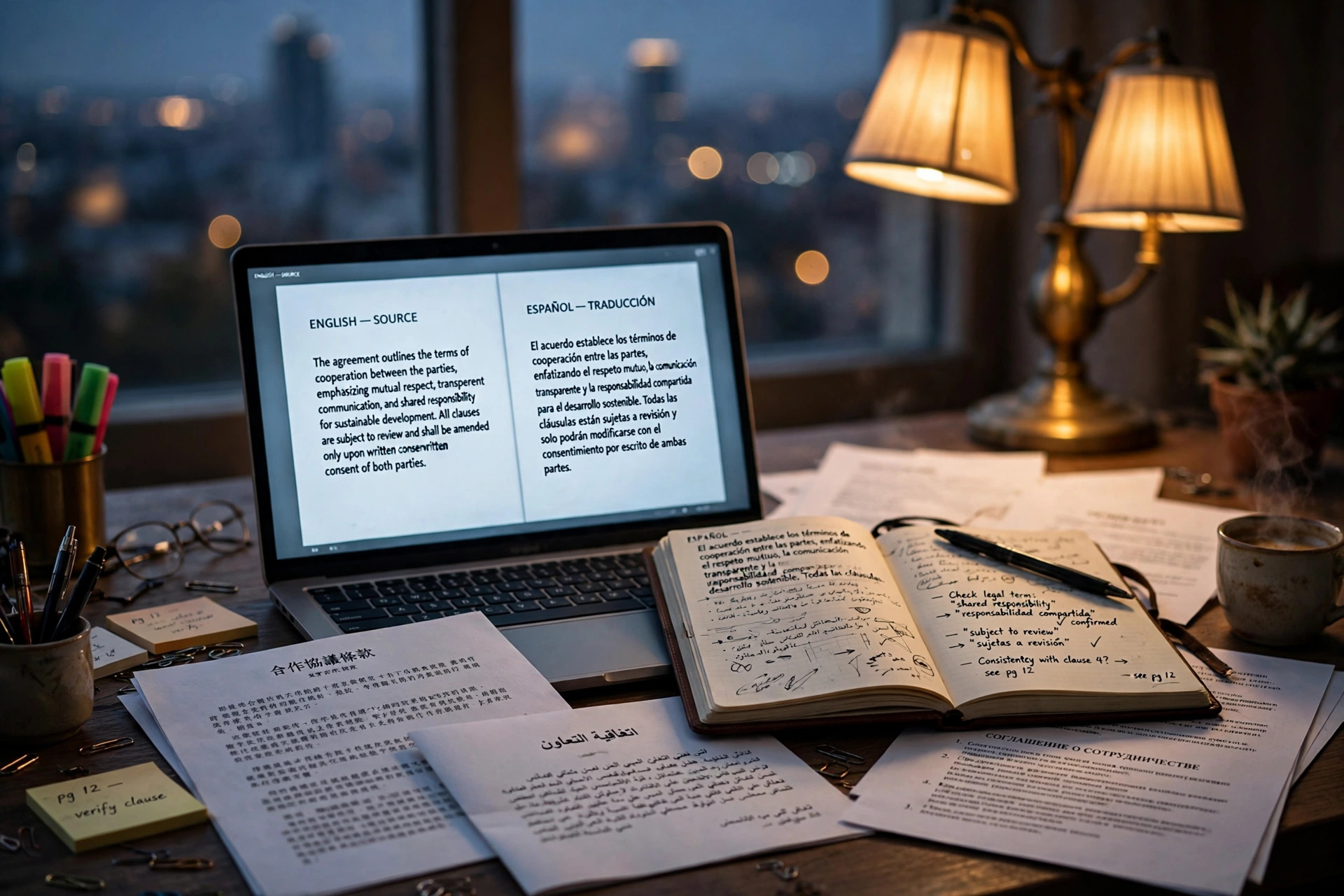
A translation used to mean a bilingual dictionary, a phrasebook, and a lot of patience. In 2026 it means pasting a paragraph into an app and getting a fluent version back in seconds — in a language you may not read at all. AI translation tools are now good enough to translate a website, a contract draft, a customer email, or a whole video into another language, and they are free to start. But they are not magic, and the mistakes they make are quiet ones: a polite phrase turned rude, a product name translated when it should have stayed in English, a medical instruction softened into something wrong, a joke that lands as an insult. Most bad translations fail for the same reason most bad writing fails: nobody decided who the reader was, or what the text was for, before the machine started working. This guide shows how to use AI tools for translation properly: which tool fits which job, how to keep names and technical terms consistent, and how to check a translation you cannot read yourself.
What AI translation tools actually do — and what they do not
There are five different kinds of tool hiding under the label "AI translation", and most disappointment comes from using the wrong kind for the job. First, dedicated neural translators such as DeepL and Google Translate, which are built for one thing: turning text in one language into natural text in another, fast and at scale. Second, general AI chatbots such as ChatGPT, Claude and Google Gemini, which translate with context — they can keep a tone, follow your instructions about a tricky term, and explain why they chose a particular word. Third, document translators, which translate a whole Word, PDF, or PowerPoint file while keeping the layout, tables, and headings intact. Fourth, speech translators, which listen to spoken language and translate it live — for a call, a meeting, or a conversation on the street. Fifth, video translators such as HeyGen and ElevenLabs, which dub a video into another language, matching the speaker's voice and even their lip movements.
What AI is genuinely good at: everyday translation between major languages — English, Spanish, French, German, Japanese, Chinese and the rest — where it now reads fluently and naturally; translating large volumes quickly; keeping a consistent style once you give it rules; and translating speech and video well enough for a meeting or a social post. What it is genuinely bad at: low-resource languages with little training data, where the output can be confident and wrong; legal, medical, and safety-critical text, where one wrong word has real consequences; humour, poetry, and wordplay, where the meaning lives between the lines; and knowing your reader — a translation for a lawyer, a customer, and a ten-year-old are three different jobs, and the tool will not ask which one you meant. The rule for this whole guide is simple: AI translates the words, you own the meaning. The moment a translation goes out in your name without anyone checking it, you have stopped translating and started guessing.
Step 1: Know what kind of translation you need before you pick a tool
Before you open any app, answer three questions. First, what is the text for — a message to a friend, a product page, a contract, a video, a live conversation? A casual chat message and a customer-facing help page are not the same job, and they should not use the same tool or the same level of checking. Second, who is the reader, and what happens if the translation is slightly wrong? A slightly awkward restaurant review costs nothing; a slightly wrong dosage instruction or contract clause can cost a great deal. Third, how much text is there, and how often will you do this? A one-off email and a weekly product catalogue in five languages need different tools — and different budgets.
Then set one honest rule for yourself: anything that will be published, signed, or sent to a customer gets a human check by someone who reads the target language. Machine translation is a draft, not a delivery. If no such person is available, at least run the checks in Step 8 — back-translation and the consistency scan — before you publish. The people who get burned by AI translation are almost never the ones who used a bad tool. They are the ones who trusted a good tool too far.
Step 2: Start free — DeepL and Google Translate for everyday text
The cheapest translator is the one already in your browser. DeepL is the honest pick for European languages: its free plan translates 50,000 characters a month — roughly 8,000 words — with a 1,500-character limit per paste, one file translation a month, and one small glossary. Individual costs about $8.74 a month billed annually ($10.49 month to month) for 300,000 characters a month and three file translations. DeepL covers more than 30 languages, and its strength is natural-sounding output in French, German, Spanish, Italian, Dutch, Polish, Japanese, and Chinese. Google Translate is the honest pick for breadth: it is free, covers more than 130 languages, and handles text, whole web pages, images through your phone camera, and spoken conversation. For a language DeepL does not cover, or a quick translation on the go, Google Translate is usually the right answer.
The trick is how you feed them. Short, clean source text translates far better than long, messy text. Before you paste, fix the typos, break up sentences longer than about 25 words, and spell out abbreviations — "the Q3 report for the EMEA team" becomes "the third-quarter report for the Europe, Middle East, and Africa team" before it ever reaches the translator. Avoid slang, idioms, and jokes in the source: "it's raining cats and dogs" will come back as weather involving animals. And always translate from the original language, never through a chain — English to German to Japanese loses meaning at every step, while English to Japanese directly keeps far more of it.
One honest warning that applies to every free translator: on the free plan, your text may be used to improve the service. DeepL's free tier may use submissions for training; the paid plans guarantee your texts are deleted and never used for training. Google Translate's free service likewise processes your text on its servers. Never paste passwords, private customer data, medical records, or confidential business documents into a free translator. If the text is sensitive, use a paid plan with a data-deletion guarantee, or translate it on a tool you control.
Step 3: Use a chatbot when context, tone, or nuance matters
DeepL and Google Translate are fast, but they cannot be told what you mean. A chatbot can. ChatGPT is free to start, with Plus at $20 a month for higher limits. Claude is free to start, with a paid Pro plan above it. Google Gemini is free with a Google account, with higher limits from $4.99 a month on Google AI Plus. All three can translate, and all three can do the things a dedicated translator cannot: keep a formal or friendly tone, translate a brand name as a brand name rather than a word, explain a tricky phrase, and tell you when a sentence cannot be translated literally.
The trick is to give the chatbot the job in words. "Translate this into French" gives you a competent, generic translation. "Translate this product description into French for a Paris fashion audience. Keep the brand name Lumière in English, keep a warm and playful tone, and tell me if any phrase sounds awkward in French" gives you a translation that fits the reader — and a warning about the phrases that do not travel. For a long document, translate it in sections and tell the chatbot to keep a list of the terms it chose for key words, so the same term comes back the same way on page ten as it did on page one. And when the meaning matters more than the words — a slogan, a headline, a piece of marketing copy — ask for three options and pick the one a native speaker would actually say, rather than accepting the first literal version.
One thing to know before you lean on chatbots too hard: they invent, and they smooth over what they do not understand. A chatbot will quietly fix a sentence that was ambiguous in the original, choose the most likely meaning, and never tell you it guessed. For anything where the exact meaning matters — a contract, a medical instruction, a safety warning — that silent guess is dangerous. Tell the chatbot to flag every ambiguous phrase instead of resolving it, and read those flags before you use the translation. The test that matters most is the one a native speaker runs in ten seconds: does this read like it was written by a person, for a person, in this language?
Step 4: Translate whole documents without breaking the layout
Translating a document is a different job from translating a paragraph, because the layout is part of the message. A translated report that loses its tables, a slide deck where the text overflows every box, or a contract where the numbered clauses no longer match is worse than no translation at all. DeepL handles this best for everyday files: its free plan translates one Word, PowerPoint, or PDF file a month (up to 5 MB), and the paid plans raise that to three or more files a month with larger size limits, keeping the formatting intact. Google Translate can translate whole documents and web pages for free, though the layout preservation is rougher — fine for reading a foreign PDF yourself, less fine for sending the result to a client.
Before you translate a file, prepare it the way you prepared the text in Step 2. Check that the document is editable text, not a scanned image — a scanned PDF needs optical character recognition first, and a translator fed a picture of words will give you nothing. Remove tracked changes and comments, because they translate too, and lock in the final version before you start. After translation, check the result page by page: headings, tables, page numbers, footnotes, and captions. Translated text is often 20 to 30 percent longer than English — German and French routinely are — so text will overflow boxes, tables, and slide layouts that fit the original perfectly. Budget time to fix the layout; the translation is only half the job.
If the document is long, translate it in one pass through one tool rather than splitting it across tools, or the same term will come back differently in different chapters. And keep the original beside the translation while you check it — a bilingual reviewer works fastest with both versions open, and the most common document-translation error is not a wrong word but a missing paragraph: a table, a caption, or a footnote the tool skipped silently. Count the paragraphs before and after. If the numbers do not match, something was lost.
Step 5: Translate speech — live conversation, calls, and meetings
Spoken translation is where AI feels most like magic, and where its limits are easiest to miss. Google Translate's conversation mode is free and genuinely useful: two people take turns speaking into one phone, and each hears the other in their own language, across more than 130 languages. It is the right tool for travel, a shop, a taxi, or a first meeting with someone who does not share your language. Microsoft Copilot and Microsoft Translator bring the same idea into work calls, with live captions and translation inside Teams meetings. Otter.ai records and transcribes meetings, with a free plan that includes a monthly allowance of live transcription minutes and paid plans from roughly $17 a month, and its transcripts can then be translated — a useful chain for a team that meets in one language and reads the notes in another.
The trick is to speak for the machine, not just to it. Speak in short sentences, pause between thoughts, and avoid talking over the other person — the translator needs clean audio, and two voices at once gives it neither. In a meeting, say names, numbers, and dates slowly and clearly, because those are the words the system gets wrong most often, and a wrong number in a translated meeting is worse than a wrong adjective. If the conversation matters — a negotiation, a medical appointment, a job interview — use the live translation as a bridge, not as the whole conversation: confirm the important points in writing afterwards, in both languages, so a misunderstanding has a chance to surface while it can still be fixed.
One honest warning: live translation adds delay, and delay changes a conversation. A two-second lag in each direction turns a natural back-and-forth into a careful, stilted exchange, and people read that stiffness as coldness or confusion. Give the other person time, watch their face rather than the screen, and keep sentences short enough that the translation arrives before the moment passes. And remember that a phone translating a conversation is also recording it — tell the other person the tool is running, and do not use it for a conversation you would not want stored on a server.
Step 6: Translate video — dubbing, subtitles, and lip-sync
Video is the hardest translation job, because the words have to match a voice, a face, and a clock. The simplest version is subtitles: translate the script, then burn the translated text onto the video as captions, timed to the speech. Descript is the honest pick for that workflow — it transcribes your video, lets you edit the text like a document, and exports subtitles in another language, with a free plan for trying it out and paid plans above it. Subtitles are fast, cheap, and honest: the viewer hears the original voice and reads the translation, and nothing is faked.
Dubbing is the next step up, and it is where the newer AI tools earn their price. HeyGen translates a finished video into more than 175 languages, re-voices it, and re-syncs the speaker's lips to the new language; its free plan covers three watermarked videos a month up to one minute each, and Creator costs $29 a month ($24 billed annually). ElevenLabs offers AI dubbing in dozens of languages, cloning the original speaker's voice so the translated version still sounds like them, with a free tier of limited credits and paid plans from about $5 a month. Both are genuinely impressive for training videos, product demos, and social content — the kind of video where the message matters more than the performance.
But dubbing has limits you should know before you pay. The voice clone is a copy, not the person, and it can sound flat on emotion — excitement, sarcasm, and warmth are the first things to go. Lip-sync works best on a straight-to-camera speaker and struggles with side angles, fast movement, and overlapping voices. And a dubbed video raises a question subtitles never do: does the viewer know they are hearing a machine? Say so, in the description or on screen. A viewer who discovers the voice is synthetic feels tricked; a viewer who is told upfront just watches the video. For anything where trust matters — a founder's message, a testimonial, a news report — subtitles are the safer choice, because the real voice is still in the room.
Tools to try, with honest notes
DeepL: start here for text between major languages, because the free plan — 50,000 characters a month, one file a month — is enough for most everyday translation, and Individual at about $8.74 a month billed annually buys 300,000 characters and proper data deletion. Best for European languages, documents, and anything where natural phrasing matters; skip it if you need a language it does not cover, or a live conversation, because it is a text tool first. Google Translate (no listing yet — use it free on the web): the broadest translator, free, more than 130 languages, with text, documents, camera, and conversation modes. Best for travel, rare languages, and quick checks; skip it for anything confidential or customer-facing without a human check, because the free service processes your text on its servers and the output is competent rather than polished.
ChatGPT: the flexible translator, free to start, Plus at $20 a month. Best for translations where tone, audience, and tricky terms matter, and for asking why a phrase works or does not; skip it for bulk translation, because pasting a hundred pages into a chat is slow and the same term can drift between sessions. Claude: the careful editor, free to start, with a paid plan above it. Best for long, careful translations and for marketing copy where the words have to land, not just match; skip it if you need a file translated with its layout intact, which is DeepL's job. Google Gemini: the free assistant inside your Google account, with higher limits from $4.99 a month on Google AI Plus. Best for anyone already working in Google Docs who wants translation inside the document; skip it if you need glossaries or file translation, which it does not do as a dedicated tool.
HeyGen: the video translator, free with three watermarked videos a month, Creator from $29 a month ($24 billed annually). Best for turning a training video or product demo into 175+ languages with lip-sync; skip it if the video is a personal message or a testimonial, where subtitles keep the real voice. ElevenLabs: the voice cloner, free with limited credits, paid plans from about $5 a month. Best for dubbing where the speaker's own voice matters; skip it if you need the emotion of a live performance, because the clone flattens it. Descript: the subtitle and editing workflow, free to start. Best for captioning and translating video by editing a transcript; skip it as your only translator, because it is an editor first. And a note on the tools that support the work rather than doing it: Grammarly is free to start and catches the errors in your source text before translation multiplies them, Otter.ai transcribes meetings so the translation starts from accurate words, Perplexity is free with cited answers and is useful for checking how a term is actually used in the target language, and Notion AI can hold a glossary and a translation workflow in one workspace if you prefer building your own system to buying one.
Common pitfalls, honestly stated
The first pitfall is translating without a reader in mind. A translation with no audience is a translation with no standard: formal or friendly, technical or plain, British or American English — the tool will pick one at random unless you tell it which. Decide the reader first, and write the instruction down. The second pitfall is the invisible error. AI translation rarely produces obvious nonsense anymore; it produces fluent, confident text with one wrong word in it — a "not" dropped, a number changed, a name translated. Fluent and wrong is more dangerous than broken and obvious, because nobody checks the fluent version. Read the result, or have someone read it, every time the stakes are real.
The third pitfall is the free tier that quietly stops working, or quietly changes the deal. DeepL's free 50,000 characters a month, one file a month, and 1,500 characters per paste are real limits — a long document will hit them fast, and the honest question is whether the thing they block is something you do every week. If it is, pay for one tool, not five. And remember the privacy trade: free tiers may use your text to improve the service, so confidential text belongs on a paid plan with a deletion guarantee, not in a free web translator. The fourth pitfall is translating brand names, product names, and technical terms. A product called "Summit" should not become "Gipfel" in German or "Cumbre" in Spanish unless you decided that — and a term like "cloud" has a technical meaning that a general translator may miss. Build a glossary before you translate at volume, and enforce it.
The fifth pitfall is the chain translation: translating from English to French, then French to Arabic, because the tool you like does not do Arabic well. Every hop loses meaning and adds errors. Translate from the original language directly, or find a tool that handles the pair you actually need. The sixth pitfall is trusting a translation you cannot read. If you do not speak the target language, a fluent-looking result tells you nothing about whether it is right — run the back-translation check, compare the numbers and names, and get a native speaker to read the important pages. The point of AI translation tools is not to translate more words. It is to reach more readers, and still be understood by every one of them.
Frequently asked questions
What is the best free AI translation tool? For everyday text, DeepL's free plan, because 50,000 characters a month with natural-sounding output covers most personal use, and Google Translate, because it is free, covers more than 130 languages, and handles images and live conversation. The honest answer is that the best free tool depends on the pair: DeepL for European languages, Google Translate for breadth and for languages DeepL does not cover, and a free chatbot — ChatGPT, Claude, or Google Gemini — when tone and context matter more than speed.
Is DeepL better than Google Translate? For the languages DeepL covers, usually yes — its output reads more naturally, especially in French, German, Spanish, and Japanese, and its glossary and file translation are stronger. Google Translate wins on breadth, with more than 130 languages against DeepL's 30-plus, and on the extras: camera translation, conversation mode, and whole web pages, all free. Try the same paragraph in both and read the results; for a language pair you use every day, the difference is worth the test, and for a rare language there is often no contest at all.
Can AI translate a whole document and keep the formatting? Yes, with limits. DeepL translates Word, PowerPoint, and PDF files while keeping the layout — one file a month up to 5 MB on the free plan, more on the paid plans. Google Translate can translate documents and web pages for free, with rougher layout preservation. Always check the result page by page afterwards: translated text runs 20 to 30 percent longer than English, so text overflows boxes and tables, and a table, caption, or footnote can be skipped silently. Count the paragraphs before and after.
Can I use AI translation for legal or medical documents? Only as a first draft, never as the final version. AI translators make quiet mistakes — a dropped "not", a changed number, a term with the wrong technical meaning — and in a contract or a medical instruction that mistake has real consequences. For anything legal, medical, or safety-critical, a qualified human translator who reads the target language must check and take responsibility for the final text. The AI saves them time; it does not replace their judgment.
How do I translate a video into another language? For subtitles, transcribe the video, translate the script, and add the translated text as timed captions — Descript is built for exactly that workflow. For dubbing, HeyGen translates a finished video into more than 175 languages with lip-sync, from $29 a month ($24 billed annually), with three watermarked videos a month free; ElevenLabs dubs in dozens of languages while cloning the speaker's voice, with a free tier and paid plans from about $5 a month. Subtitles are faster, cheaper, and keep the real voice; dubbing is better when the audience will not read captions. Say on screen or in the description when a voice is AI-generated.
How can I check a translation in a language I do not speak? Four checks, in order. First, back-translate: run the translated text back into the original language with a different tool and see whether the meaning survived — if a key sentence comes back different, something was lost. Second, compare the numbers, names, dates, and brand terms against the original; these should be identical, and they are the easiest errors to catch. Third, check the length and structure: the same number of paragraphs, the same headings, nothing missing. Fourth, and most important, have a native speaker read the pages that matter — a colleague, a freelancer, a language exchange partner. Back-translation catches gross errors; only a human catches the ones that sound right and mean the wrong thing.
More tools to explore
ChatGPT
A general AI assistant for writing, brainstorming, explanation, analysis and everyday problem solving.
CLClaude
An AI collaborator suited to long documents, complex reasoning, first drafts and multi-step project work.
PXPerplexity
An answer and research tool built around web discovery, synthesis and source-backed exploration.
MJMidjourney
A generative image platform for concept art, visual exploration and polished creative imagery.