
How to Use AI Tools for Email Management
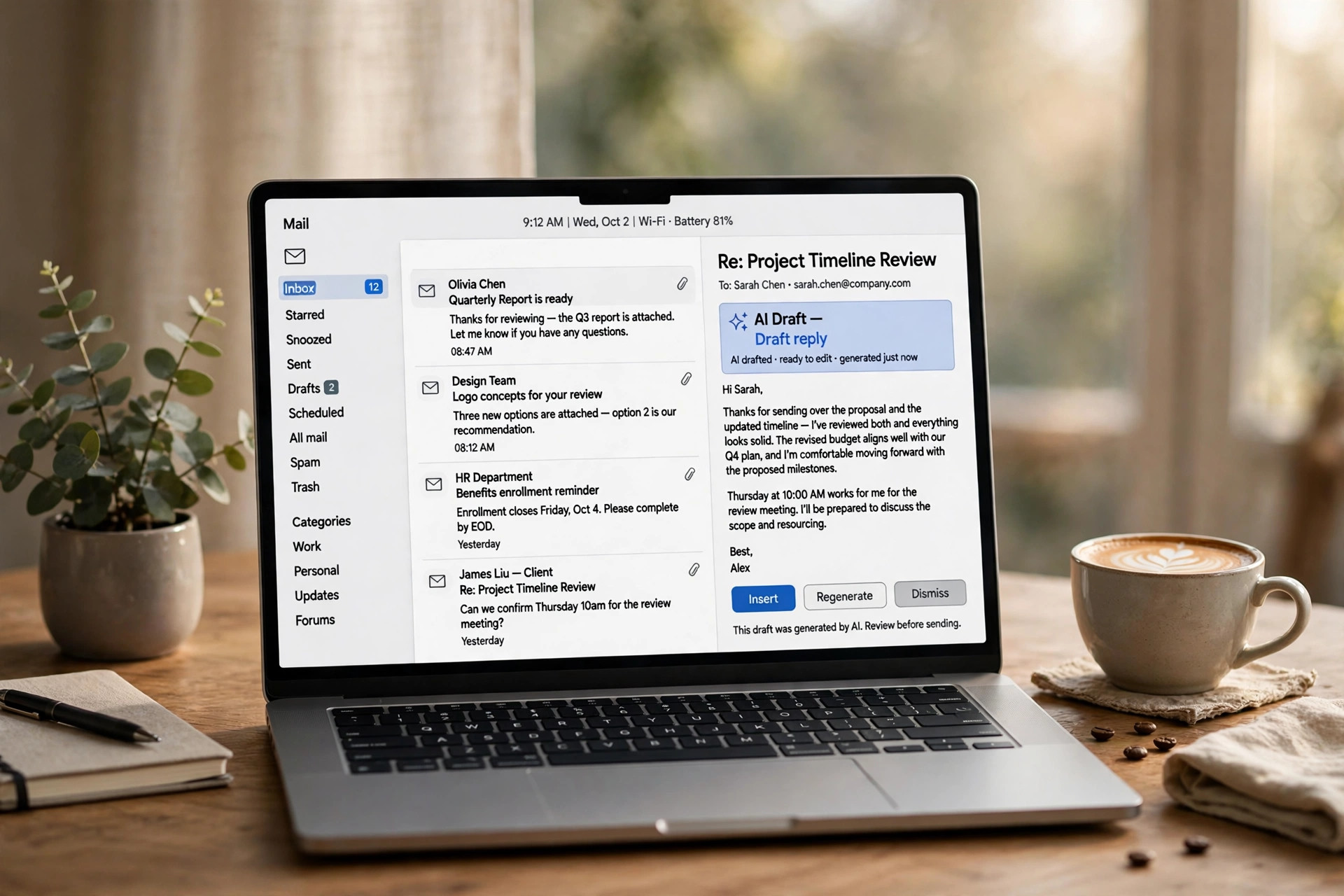
The average office worker gets more than 100 emails a day, and most of them do not need a human being — they need a decision, a two-line reply, or nothing at all. AI email tools are genuinely good at the first two jobs and genuinely dangerous at the third: they can summarise a 40-message thread in seconds, draft a reply in your voice, sort the newsletter from the invoice, and remind you about the thread you forgot. They can also invent a price, agree to a deadline you never offered, and send a confident reply to the wrong person. Most email automation fails because someone buys a clever client before they have decided what their inbox is for. This guide shows how to use AI tools for email management properly: what to fix first, which tool fits which job, and where the honest limits are.
What AI email tools actually do — and what they do not
There are four different kinds of tool hiding under the label "AI email", and most disappointment comes from buying the wrong kind for the job. First, the AI already inside your inbox: Gemini in Gmail and Copilot in Outlook, which summarise threads, draft replies and answer questions about your mail. Second, AI email clients such as Superhuman and Shortwave, which replace the Gmail or Outlook app with a faster, keyboard-driven inbox with AI built in. Third, AI agents such as Lindy and Fyxer, which read your inbox, draft replies in your voice and chase follow-ups for you. Fourth, inbox organisers such as SaneBox and Spark, which sort, filter and bundle mail so the important stuff surfaces first. A tool from one group does not do another group's job, and no tool in any group should be allowed to send mail on your behalf without you reading it first.
What AI is genuinely good at: summarising long threads, drafting routine replies, sorting mail into categories, finding the one message you need, and reminding you about threads that went quiet. What it is genuinely bad at: knowing what you meant to promise, spotting a phishing email that looks like your boss, and judging whether a reply is politically safe to send. The rule for this whole guide is simple: AI drafts, you decide. The moment an AI tool sends mail without a human reading it, you have given away the one thing email is for — your judgement about what you are committing to.
Step 1: Measure your inbox before you automate it
Before you buy or install anything, spend three days watching your own inbox. Count how many emails arrive a day, how many you actually reply to, and how many of the replies are the same five sentences written slightly differently. Most people find the same pattern: about a third of the mail is newsletters and notifications that could be unsubscribed or filtered, about a third needs a short routine reply, and only about a third needs real thought. The AI tools in this guide are bought for the middle third. If your inbox is mostly newsletters, you do not need AI — you need an unsubscribe afternoon and a filter. If your inbox is mostly complex negotiation, you do not need AI either — you need fewer meetings and clearer subject lines.
Write down your five most common replies. "Thanks, confirmed for Tuesday." "Please send the invoice." "Can you share the file?" "Looping in Sarah." "I'll check and get back to you by Friday." Those five sentences are the test for every tool in this guide: if it cannot draft them in your voice, in under five seconds, without you retyping them, it is not saving you time. Then check one number that decides which tool you need: how many emails a day you actually send. Under 20 a day, the free AI in Gmail is probably enough. Over 50 a day, a dedicated client starts to pay for itself. Over 100 a day, you need triage and automation, not just faster drafting.
Step 2: Start with the AI already in your inbox
The cheapest AI email tool is the one you already have. Google has spent 2026 turning Gemini from a side panel in Gmail into a set of features built into the inbox itself. Since November 10, 2026, Google has been rolling out AI thread summaries and basic Help me write to all Google Workspace accounts and to personal Google accounts aged 18 and over with smart features turned on — on by default, rolling out over about 15 days. That means a long thread now shows a short summary at the top, and you can ask Gemini to draft a reply from a one-line prompt. Suggested Replies and thread summaries are free for personal accounts in the US, and summaries are rolling out globally. The full Ask Gemini side panel — the one that searches your inbox, organises mail and proposes meeting times — still needs a paid plan: Google AI Plus is the cheapest personal plan that includes it, and Google AI Pro costs $19.99 a month. On a work account, Gemini in Gmail is included on all four Workspace Business plans, Business Starter included, which starts from about $7 a user a month billed annually.
Turn it on properly. In Gmail, open Settings, then See all settings, then General, and check that Smart features and personalisation are on — they are off by default in the EEA, the UK, Switzerland and Japan, so if you are in one of those places the AI features simply will not appear until you switch them on. Then use the three free features for a week before you pay for anything: open a long thread and click Summarize this email, reply to a routine message with Help me write, and accept or edit a Suggested Reply. If those three do not save you time, a paid client will not either — the problem is your inbox, not your tool. If they do save time, the next step is the side panel: ask it "summarise the thread about the March invoice and tell me what I owe", and see whether the answer is right. Check it against the actual thread, because an AI summary that invents a number is worse than no summary at all.
If you live in Outlook rather than Gmail, the equivalent is Microsoft Copilot: it summarises threads, drafts replies and can prepare you for a meeting from your mail and calendar. The same test applies — use the built-in AI for a week before you spend money on a separate client. One honest warning that applies to both: availability changes by country, language, account type and device, and Google has changed which Gemini features are free several times in 2026 alone. Check what your own account actually shows rather than trusting a pricing page you read last month.
Step 3: Set up triage — labels, bundles and the two-minute rule
No AI tool fixes an inbox that has no system. Triage is the system, and it takes an hour to set up. First, create four labels or folders and nothing more: Needs reply today, Waiting on someone else, Read later, and Reference. Every email gets one of the four, or it gets archived or deleted. The point of four labels is that the decision is fast — more labels means more thinking, and thinking is the cost you are trying to remove. Second, turn on Gmail's categories or your client's bundling, so newsletters, social notifications and promotions land in their own tab and never sit next to a message from your boss. Third, unsubscribe from anything you have not opened in a month. An AI summary of a newsletter you never read is still a newsletter you never read.
Then apply the two-minute rule, which is older than AI and still the best email advice there is: if a reply takes less than two minutes, do it now instead of filing it. AI drafting makes the two-minute rule much more powerful, because the draft takes five seconds and the decision takes the rest. The workflow that actually works is: open the email, read the AI summary if the thread is long, let the AI draft the reply, read the draft, fix anything wrong, send. That is four steps and about a minute. The workflow that fails is: open the email, let the AI draft, send without reading. Sooner or later that workflow sends a wrong price, a wrong date or a promise you cannot keep — and the cost of one bad email is more than a year of saved minutes.
For the "Waiting on someone else" label, set a rule: anything that has waited three working days gets one polite follow-up, then it gets escalated or dropped. AI agents are genuinely useful here — they can watch for the reply that never came and draft the nudge — but the decision to chase is still yours. A follow-up sent by an agent to a client you were about to drop is a small embarrassment; a follow-up sent to a client who just told you to stop emailing is a real problem.
Step 4: Let AI draft, but never auto-send
Drafting is where AI email tools earn their money, and it is also where they do the most damage. A good draft sounds like you: same greeting, same sign-off, same level of formality, same habit of saying "thanks" or not saying it. Train it by editing its drafts, not by accepting them. Every time you fix a draft — change the tone, add the detail it missed, remove the sentence you would never write — the tool gets a little closer to your voice. Most tools learn from those edits, and the ones that do not are not worth paying for. Give the tool good prompts, too. "Reply to this" is a bad prompt. "Reply confirming Tuesday 2pm, ask them to send the invoice, keep it short and friendly" is a good prompt — and it is also the prompt that stops the AI from inventing a time you never agreed to.
The hard line is auto-send. Some tools offer to send replies automatically, or to draft and send while you sleep. Do not let them. The risks are concrete: AI drafts hallucinate facts, and an invented price or date in a sent email is a commitment you have to honour or an apology you have to write. AI cannot tell a genuine urgent email from a phishing email that imitates your boss's writing style, and an auto-reply to a phishing message confirms your address is live. And AI has no sense of office politics — it will happily send a blunt reply to a sensitive client at 2am because the thread looked routine. Read every draft before it goes out. If reading the draft takes as long as writing the reply would have, the tool is not saving you time and you should stop using it for that kind of mail.
One more thing to check before you trust any AI with your inbox: privacy. Google says it does not train its foundational Gemini models on personal emails, and that Gmail data used for a Gemini task is not retained after the task. That is a good promise from a large vendor, and it is the standard to hold every other tool to. Before you connect a smaller AI email tool, read its privacy page and check two things: does it train on your mail, and does it store your mail after the task is done. If the answer to either is unclear, do not connect it to the account where your contracts, invoices and personal mail live.
Step 5: Automate follow-ups and the boring work
Once drafting works, the next win is the work around the email, not the email itself. Meeting scheduling is the classic example: an AI that reads "can we meet next week" and offers your real availability, or books the slot straight into your calendar, saves more time than any drafting tool. So does an AI that files attachments into the right Drive folder, adds the invoice to your expenses, or turns a thread into a task in your to-do list. These are the automations worth setting up, because they remove a whole job rather than making one job slightly faster.
Set them up one at a time, and test each one on ten real emails before you trust it. A filing rule that puts the wrong invoice in the wrong folder is worse than no filing rule, because you will stop looking for it. A follow-up automation that chases a client who already replied — because the reply landed in a different thread — is the kind of mistake people remember. The test is simple: after a week, can you find everything the automation touched, and did anything go to the wrong place? If the answer to the first question is no, turn it off. If the answer to the second is yes, fix the rule before you add another one.
Templates and snippets are the unglamorous automation that saves the most time. Most AI email clients let you save a reply as a snippet and insert it with a shortcut, and the AI can fill in the name, the date and the price from the thread. Build ten snippets for your ten most common replies and you have automated the middle third of your inbox without any AI at all — and without any risk of the AI inventing a detail. The AI is the bonus on top: it adapts the snippet to the specific thread, in your voice, in five seconds.
Step 6: Pick a dedicated AI email client only if the built-in AI is not enough
By now you know whether the free AI in Gmail or Outlook is enough. If it is, stop here — you have saved yourself $300 a year and an afternoon of setup. If it is not, the reason matters, because it decides which client to buy. If the problem is speed — you send 50-plus emails a day and the mouse is the bottleneck — you want a keyboard-first client. Superhuman is the best-known: a keyboard-driven inbox with AI drafting, summaries and search, priced at $25 a member a month billed annually ($30 month to month) for Mail Starter, and $33 a month billed annually ($40 monthly) for Business, which adds Ask AI, auto drafts and CRM integrations. There is no free plan, so try the free month before you commit, and check the bundled pricing if you already pay for Grammarly — Superhuman is now the flagship of the company formerly called Grammarly.
If the problem is triage — too much mail, and the important stuff drowns — you want an AI-native inbox that sorts and bundles for you. Shortwave is the best pick for Gmail users: a free plan with basic AI, a limited AI usage quota and 90 days of search history, and Pro at $18 a seat a month, with Business at $30 a seat a month. It works with Gmail and Google Workspace only, so if any of your mail runs on Outlook or IMAP, it cannot see it. Spark by Readdle is the budget pick if your mail is spread across providers: a functional free personal tier, Plus at $10 a month ($8.25 billed annually), and support for Gmail, Outlook, Exchange, iCloud, Yahoo and IMAP in one client.
If the problem is that you want an agent to do the email for you — drafting in your voice, chasing follow-ups, handling the routine mail while you do the real work — that is a different purchase again. Fyxer drafts in your voice for Gmail and Outlook, priced from about $30 a user a month ($22.50 billed annually). Lindy builds agents that handle email, meetings and CRM updates from a plain-language description, from a free plan with 400 credits a month and Pro at $49.99 a month. Both are agents, not clients, which means they work inside your existing inbox rather than replacing it — and both need the same rule as everything else in this guide: they draft, you decide, and nothing sends without you reading it.
One tool to be careful about: Notion Mail. It was a genuinely good free AI email client for Gmail users, with database-style inbox views and AI auto-labelling — and Notion shut it down on September 22, 2026, after announcing the wind-down in June. If you see it recommended in an old article, that article is out of date. The lesson is worth remembering for any email tool: your inbox is infrastructure, and a tool that shuts down takes your system with it. Prefer tools from vendors with a real business behind them, and keep your mail in Gmail or Outlook so that a client shutting down costs you an afternoon, not your archive.
Tools to try, with honest notes
Gmail with Gemini: start here, because it is already in your inbox and the thread summaries and basic Help me write are now rolling out free. The side panel needs a paid Google AI plan or Workspace. Best for everyone on Gmail; skip the paid upgrade until the free features have saved you time for a week. Shortwave: the best free AI-native client for Gmail users, with a genuinely usable free tier and Pro at $18 a seat a month. Best for Gmail-only users drowning in mail; skip it if you use Outlook. Superhuman: the fastest inbox you can buy, at $25 a member a month billed annually, with no free plan. Best for high-volume senders for whom inbox speed is the actual problem; skip it if you send fewer than 20 emails a day — the free AI in Gmail will do. Spark: the budget multi-provider client, free for personal use, Plus at $10 a month. Best if your mail is spread across Gmail, Outlook and iCloud; skip it if you want the strongest AI drafting, which is not its strength.
SaneBox: the inbox organiser that sorts mail into folders and surfaces the important stuff, from about $7 a month. Best for people whose problem is volume rather than writing — it does not draft, it sorts; skip it if you already use Gmail's categories and they work. Missive: the team inbox for shared threads, at $14 a user a month billed annually ($18 monthly), with no free plan. Best for teams that share an inbox like support@ or sales@; skip it for a personal inbox. Fyxer and Lindy: the agents, for when you want the routine mail handled rather than just drafted faster. Best for founders and consultants whose inbox is mostly routine; skip them if your mail is mostly sensitive or political, because an agent cannot judge that. And a note on the tools that are not email tools: ChatGPT can draft any email you paste into it, and it is free to start — but pasting your inbox into a general chatbot is the least private way to do this, and it does not know your threads, your calendar or your voice.
Common pitfalls, honestly stated
The first pitfall is trusting the draft. AI summaries miss the one sentence that changes the meaning, and AI drafts invent details that sound right — a date, a price, a name — with total confidence. Read every draft, and check any number in it against the thread. The second pitfall is auto-send. Every tool that offers it will eventually send something you would not have sent, and the apology costs more than the time you saved. The third pitfall is buying a client before fixing the inbox: no AI tool fixes an inbox with no labels, no filters and 4,000 unread messages. Spend the hour on triage first. The fourth pitfall is the privacy one: a small AI email tool that trains on your mail or stores it indefinitely is a bad trade for faster drafts, however good the drafts are. Read the privacy page before you connect the account. The fifth pitfall is the shutdown: Notion Mail closed in September 2026, and any tool can close. Keep your mail in Gmail or Outlook, not in a client, so a shutdown costs you an afternoon.
The sixth pitfall is the one nobody warns you about: the inbox gets faster, so the inbox gets fuller. When replying takes a minute instead of five, people reply to more mail, join more threads and say yes to more things — and the inbox fills up again at a higher speed. The point of AI email tools is not to answer more email. It is to answer the email that matters and ignore the rest. If your inbox is still growing after a month with an AI tool, the tool is working and the system is not: unsubscribe more, filter harder, and say no to the threads that do not need you.
Frequently asked questions
Is Gemini in Gmail free? Partly. Since November 10, 2026, Google has been rolling out AI thread summaries and basic Help me write to all Workspace accounts and to personal accounts aged 18 and over with smart features on. Suggested Replies are free for personal accounts in the US. The full Ask Gemini side panel still needs a paid Google AI plan — Plus is the cheapest personal plan that includes it — or an eligible Workspace plan. Availability varies by country and language, so check what your own account shows.
What is the best free AI email tool? For Gmail users, the free AI in Gmail itself — thread summaries and Help me write — or Shortwave's free plan, which adds AI triage and drafting. For multi-provider inboxes, Spark's free personal tier. The honest answer is that the best free tool is the one already in your inbox, because it knows your threads and costs nothing.
Can AI send emails for me automatically? Some tools offer it, and you should not let them. AI drafts hallucinate facts, cannot judge tone or politics, and cannot spot a phishing email reliably. Let the AI draft, read the draft, fix anything wrong, and send it yourself. The minute you save is not worth the one bad email.
Is it safe to give an AI tool access to my inbox? It depends on the tool. Google says it does not train its foundational Gemini models on personal emails and does not retain Gmail data after a Gemini task. Hold every other tool to the same standard: read its privacy page, check whether it trains on your mail and whether it stores it, and do not connect it to the account where your contracts and personal mail live if either answer is unclear.
Superhuman or Shortwave — which should I pick? Superhuman if speed is the bottleneck and you send 50-plus emails a day: it is keyboard-first and costs $25 a member a month billed annually, with no free plan. Shortwave if triage is the bottleneck and you are on Gmail: it has a genuinely usable free plan and Pro at $18 a seat a month. Try Shortwave free first — if the free tier solves your problem, you have your answer.
What happened to Notion Mail? Notion shut it down on September 22, 2026, after announcing the wind-down in June 2026. It was a free AI email client for Gmail users, and its closure is a reminder to keep your mail in Gmail or Outlook rather than in a client that can disappear.
More tools to explore
ChatGPT
A general AI assistant for writing, brainstorming, explanation, analysis and everyday problem solving.
CLClaude
An AI collaborator suited to long documents, complex reasoning, first drafts and multi-step project work.
PXPerplexity
An answer and research tool built around web discovery, synthesis and source-backed exploration.
MJMidjourney
A generative image platform for concept art, visual exploration and polished creative imagery.